
Guide
Getting started with NURA.
Everything an owner and their team need for the first week: setup, staff, channels, approvals and when to take over.
A short guide for business owners and their staff.
NURA brings your customer messages, catalogue, orders, bookings and tasks into one workspace. Its assistant reads your own records and prepares replies and records for you. A person in your team always checks and approves them before anything is saved or sent.
This guide describes the version of NURA released on 13 November 2026. The screenshots come from a test workspace filled with made-up businesses, people and prices. Your screens will show your own business.
---
1. Create your account and activate your workspace
Who does this: the business owner.
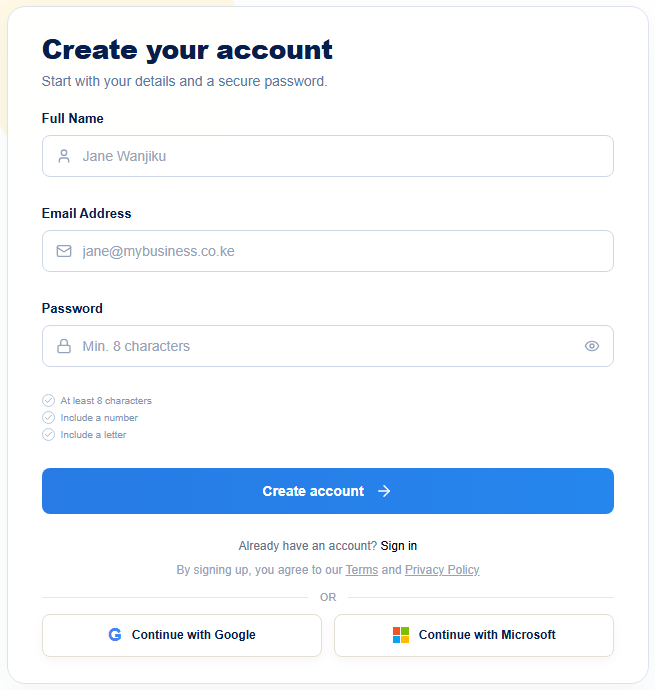
- Go to the NURA website and choose Get started. Enter your name, work email and a password, or continue with Google or Microsoft.
- Confirm your email address using the link NURA sends you. Open the link in the same browser you signed up in.
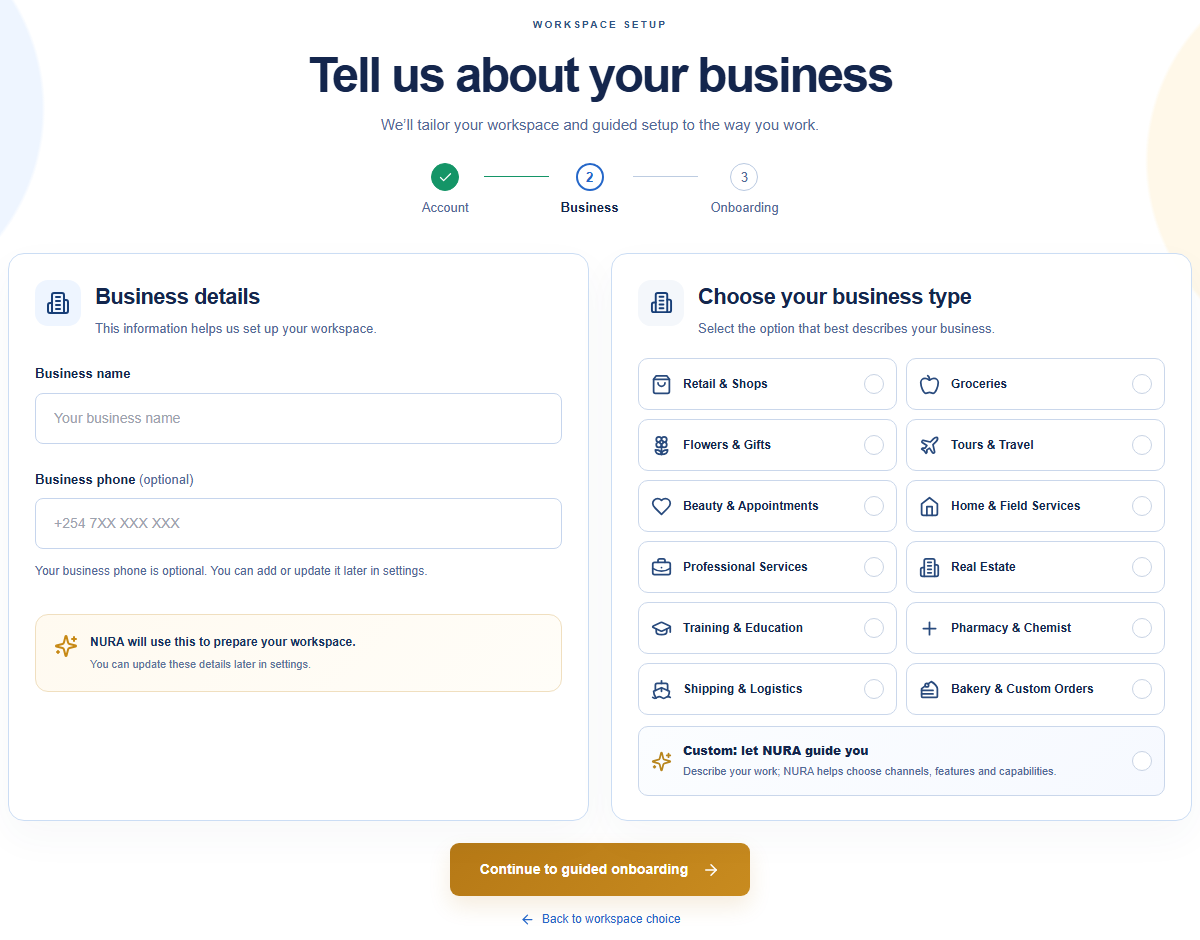
- Tell NURA about your business: its name, an optional phone number, and the type of business that fits best. NURA uses the type to switch on the right tools, for example orders and delivery for a shop, or appointments for a consultancy.
- Choose your workflows and the channels you plan to use. You can change these later.
- Request access. NURA is invitation-only during the pilot, so the NURA team reviews and approves each new workspace. Once you are approved, you start your pilot access from the activation screen.
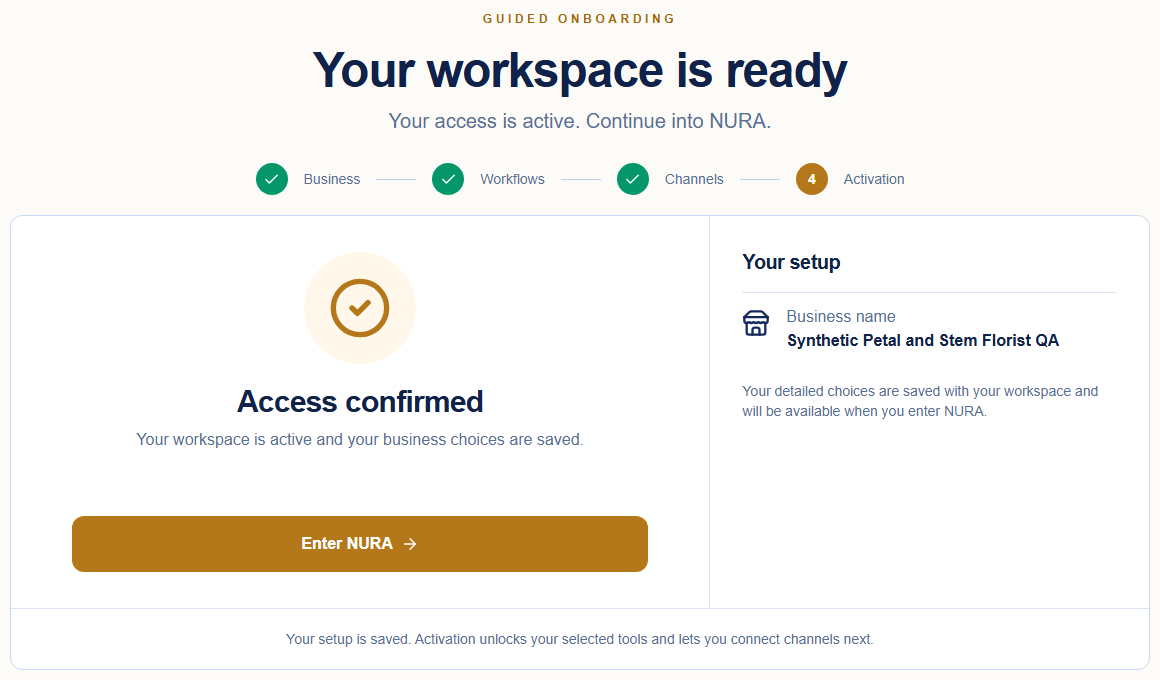
Pilot access terms are agreed with the NURA team; to ask about access, use Request pilot access. You can see your access status on the Billing page. Open it from Administration, then Workspace Settings, under Plan and usage.
Before you invite anyone, open Administration, then Workspace Settings, and check your country, currency, timezone and opening hours. Your business details and opening hours help NURA write accurate replies.
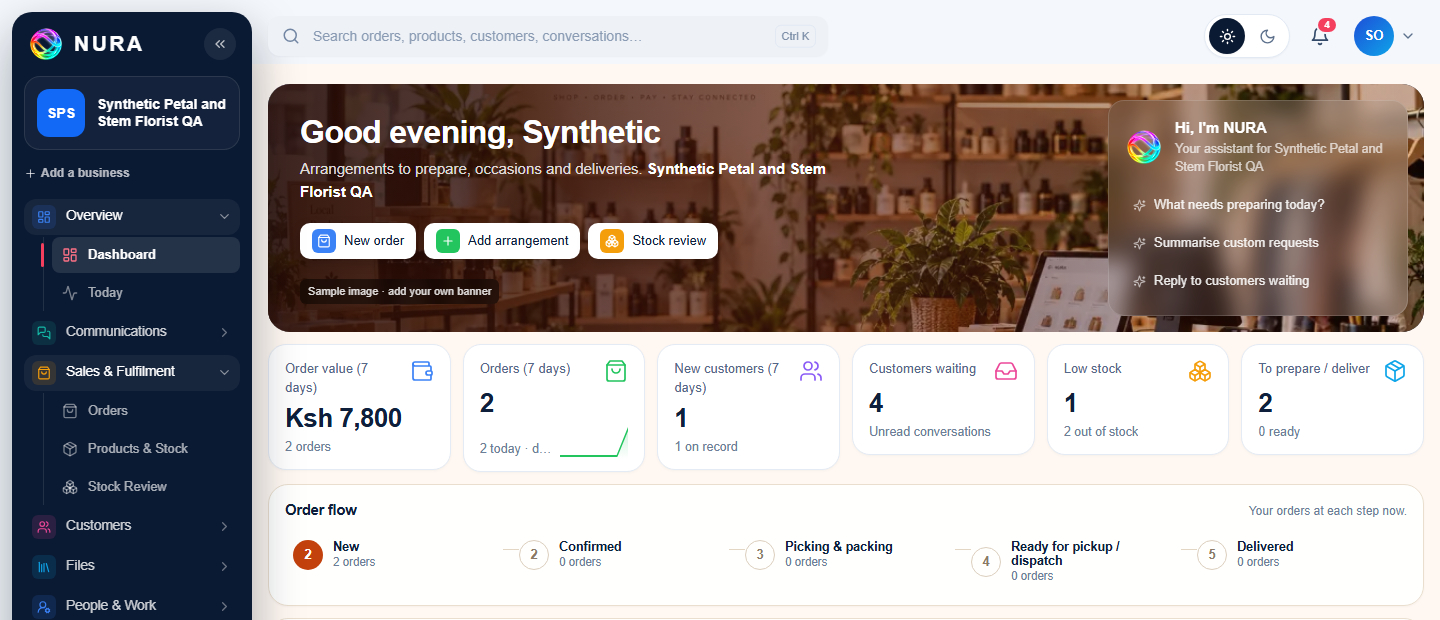
Your home screen, the Dashboard, shows what needs attention today: orders to confirm, customers waiting, low stock and things to prepare.
---
2. Invite your team and choose their roles
Who does this: the owner, or a manager.
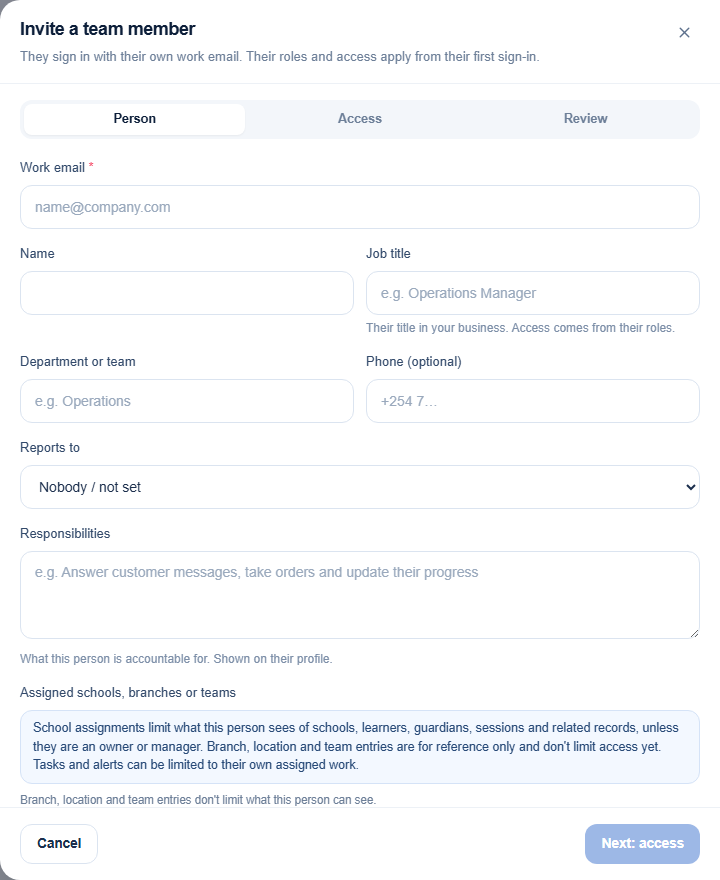
Open People and Work, then Team and Roles. Choose Invite member, enter the person's work email, name and job title, then choose their access. They sign in with their own email. Their access applies from their first sign-in.
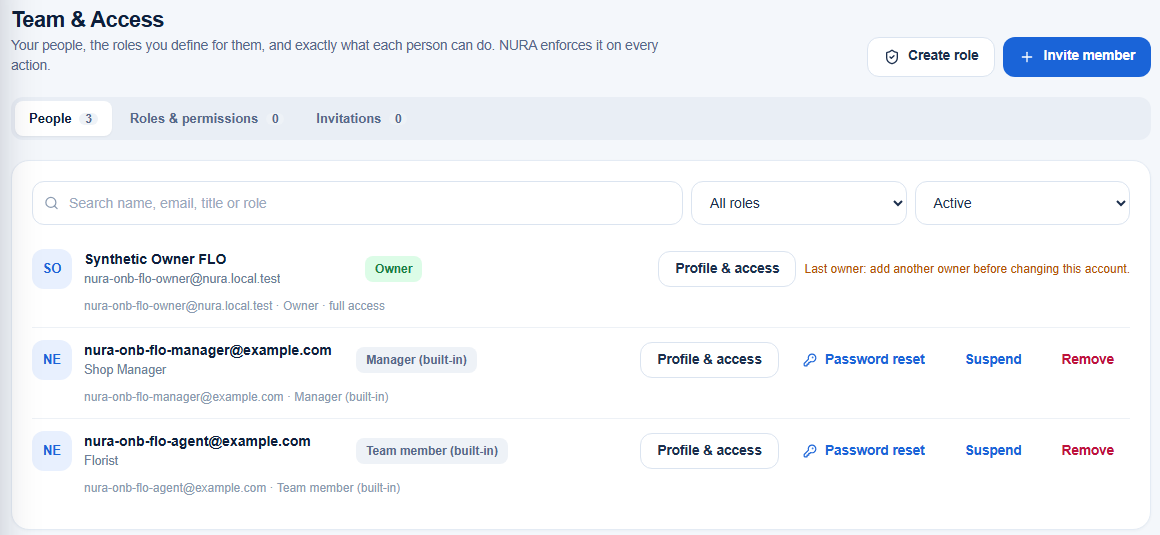
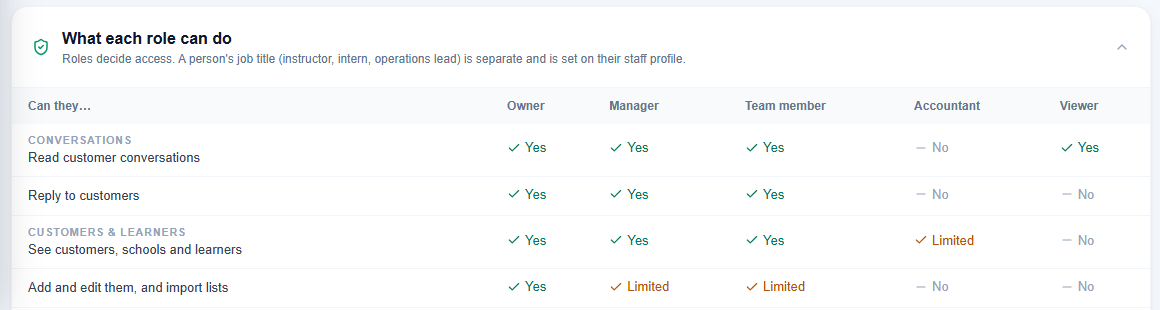
Each person's role decides what they can do, and NURA checks it on every action. Staff cannot get around it. These are the built-in roles:
- Owner: everything, including billing, payment instructions and adding other owners.
- Manager: runs the day-to-day business. Can edit the catalogue, prices and stock, edit FAQs, change most settings, invite staff below manager level, and approve replies and orders.
- Agent (shown as Team member): handles customers. Can read and reply to conversations, propose orders and bookings with NURA, and send them to an owner or manager for approval.
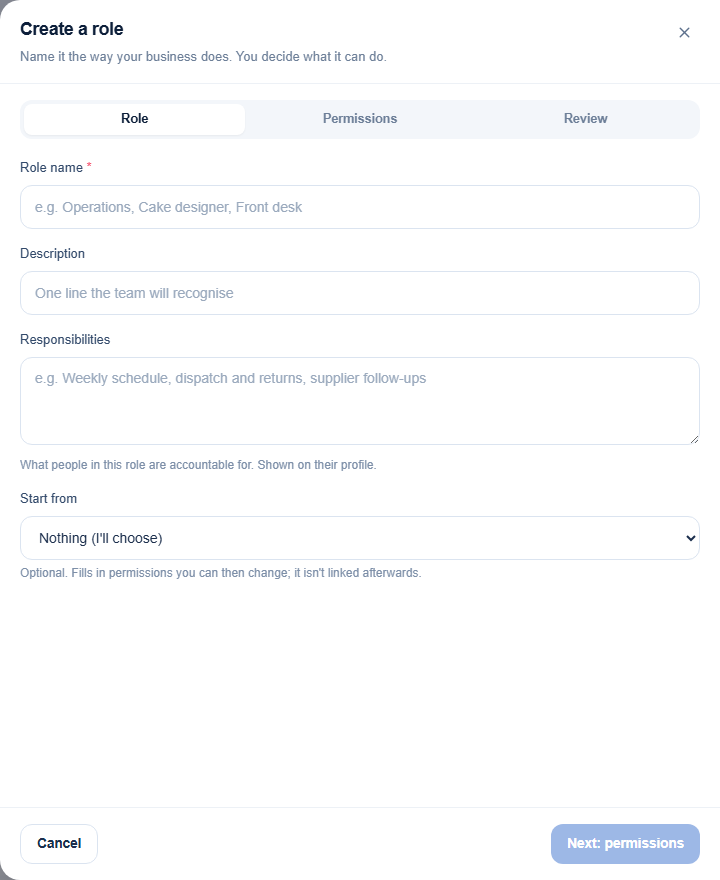
- Custom roles: you can create your own roles, such as Front desk or Dispatch, and choose exactly what each can do.
What each role can do today:
| Action | Owner | Manager | Agent |
|---|---|---|---|
| Edit catalogue, prices and stock | Yes | Yes | No |
| Change workspace settings, including currency | Yes | Yes | No |
| Edit FAQs and approved knowledge | Yes | Yes | No |
| Invite staff | Yes | Yes, below manager | No |
| Propose an order or booking with NURA | Yes | Yes | Yes |
| Send a proposal for approval | Yes | Yes | Yes |
| Approve a proposal | Yes | Yes | No |
| Record "customer accepted" (this creates the order) | Yes | Yes | Yes |
| Move an order from New to Confirmed | Yes | Yes | No |
| Create a follow-up task | Yes | Yes | No |
| Approve and send a reply NURA drafted | Yes | Yes | Only if your draft-approval setting allows |
| See reports and the team list | Yes | Yes | No |
A custom role can do whatever you grant it. One exception: custom roles cannot use the Create with NURA actions yet.
Good to know
- A manager can change the workspace currency. Prices are not converted, so KES 3,500 would simply become USD 3,500. That change is not yet recorded in the activity log. Owners should check the currency after any settings change.
- At the moment, the name and job title you type when inviting someone are not copied to their profile. Add them again after the person joins.
- Keep staff phone numbers separate from your business WhatsApp number.
---
3. Add your catalogue, or import a price list
Who does this: the owner or a manager.
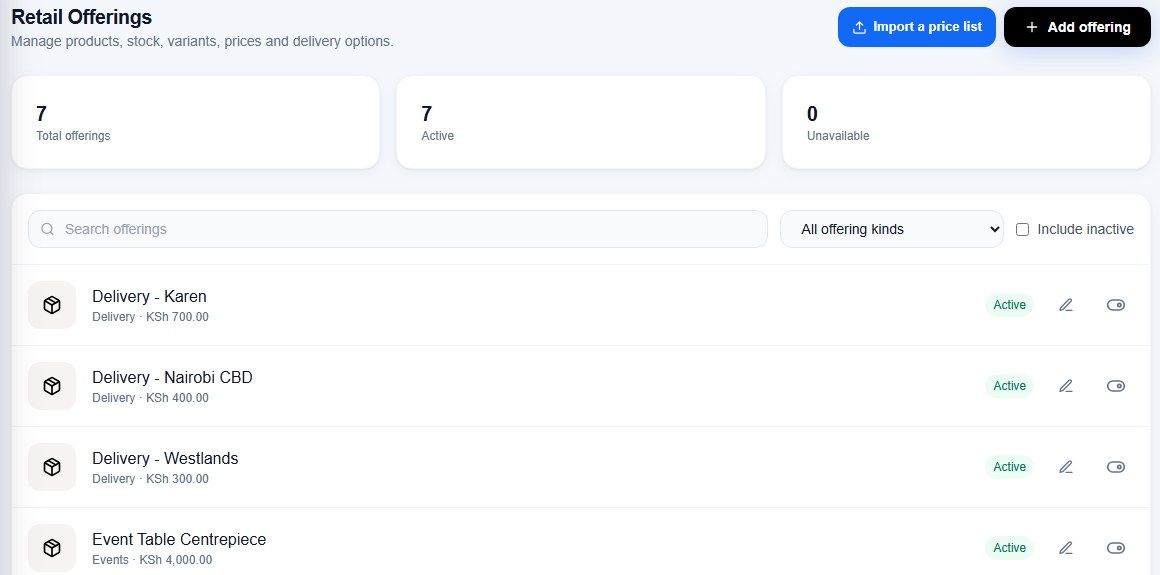
Open Sales and Fulfilment, then Products and Stock. The page name depends on your business type, for example Offerings, Menu or Services. Add each item with its price. For items you keep in stock, also enter how many you have.
Tips
- For delivery fees, add one item per area, such as "Delivery - Westlands KES 300". NURA has no separate delivery-zone setting yet.
- If you sell services, NURA may show them as "0 in stock". You can ignore that.
- If an item is sold out, set it to unavailable as well as setting its stock to 0.
Importing a price list
Choose Import a price list and attach a spreadsheet or CSV file. NURA reads the file and shows you a preview before anything changes.
- Check the import target. For a price list it is Offerings and stock.
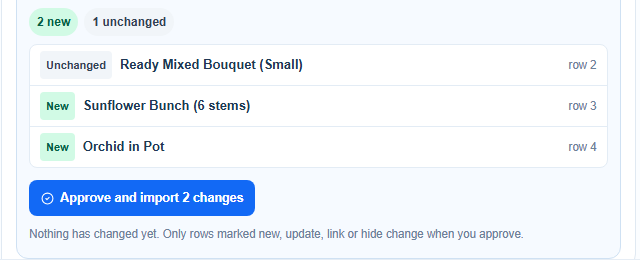
- Choose how to import: - Add new only: adds rows that are not in your records yet. Existing items are left as they are, even if the file shows a different price. - Add and update: adds new rows and updates matching items with the file's values. - Update existing only: updates matching items and skips new ones. - Hide listed items: hides the matching items from customers. Nothing is deleted.
- If the file has quantities, say whether they are a delivery (added to your stock) or a stock count (replaces your stock).
- Check which column goes into which field.
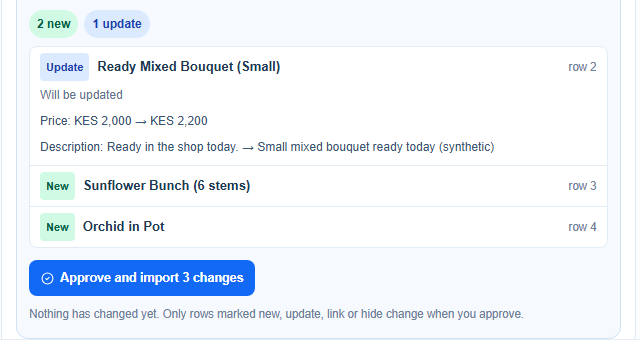
- Read the row list: New, Update, Unchanged or Needs fixing. Only then choose Approve and import.
Nothing changes until you approve. Importing the same file again creates nothing new.
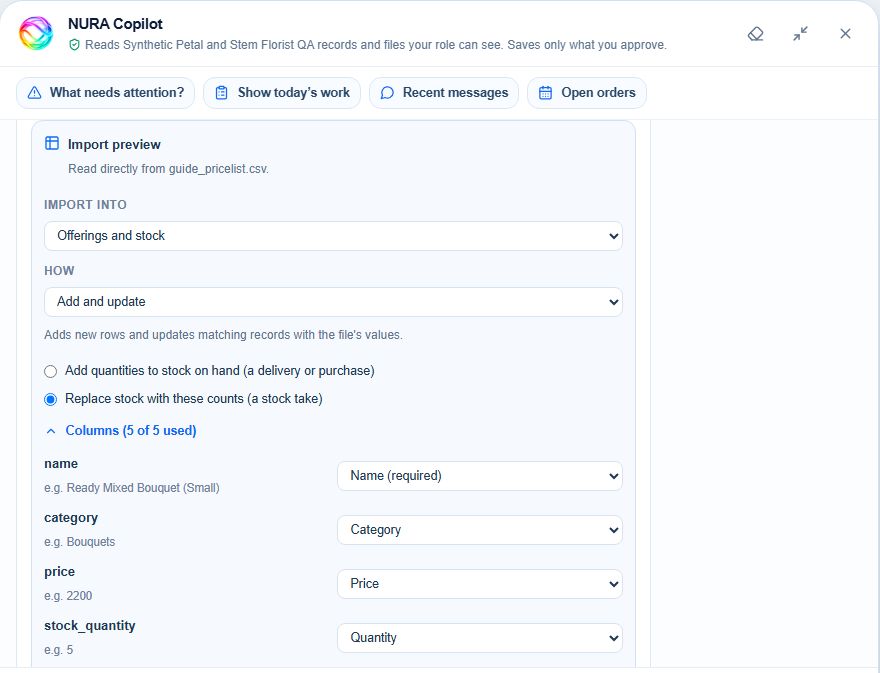
With Add and update, NURA shows the exact change for each existing item, for example the price going from KES 2,000 to KES 2,200:
With Add new only, the same item is left unchanged:
How NURA decides a row matches an existing record
- Add new only stops NURA from changing existing records. It does not stop every duplicate. It only recognises a duplicate when the row matches an existing record.
- Names are matched after ignoring capital letters, punctuation and extra spaces, so "St. Annes" and "st annes" match. A different spelling or a longer name ("Kianda" and "Kianda School") does not match, so NURA would create a second record. Tidy names before you import.
- Rows that repeat inside the same file are only created once.
- For learner lists (education workspaces), add an admission number or date of birth. Without one, two different children with the same name at the same school are treated as one person.
---
4. Add approved answers (FAQs)
Who does this: the owner or a manager.
Open Automation and NURA, then Knowledge / NURA Sources (the FAQs page). Add short, factual answers to the questions customers ask most: delivery areas and fees, opening hours, returns, how to order, notice periods. Three to six good FAQs are enough to start.
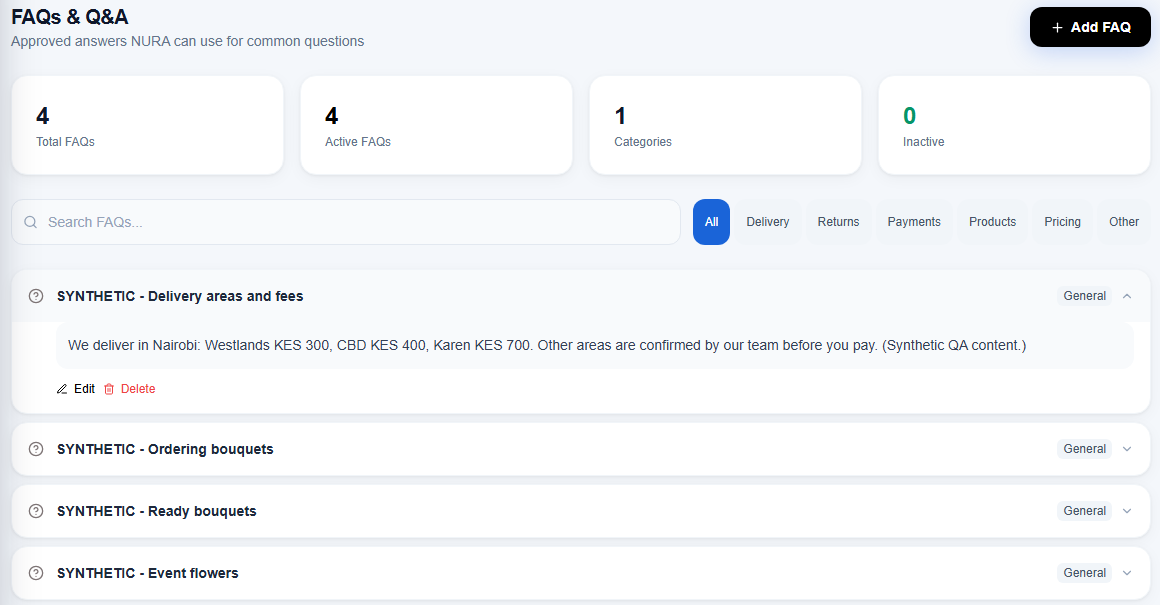
How NURA uses them
- Only active (approved) FAQs are used. NURA uses them alongside your catalogue, stock and business details when it drafts a reply or answers a question.
- If an FAQ and your catalogue disagree, customers get mixed answers. Keep prices and fees the same in both places.
- When a draft reply contains a statement NURA could not find in your records, it flags it. You must remove the statement, or confirm it is correct, before you can approve the reply.
- Do not put payment details in an FAQ. Payment instructions are set by the owner only, in the payment settings.
---
5. Connect your channels
Who does this: the owner.
Open Administration, then Integrations and Connectors. Start with email, then add the other channels as they become available.
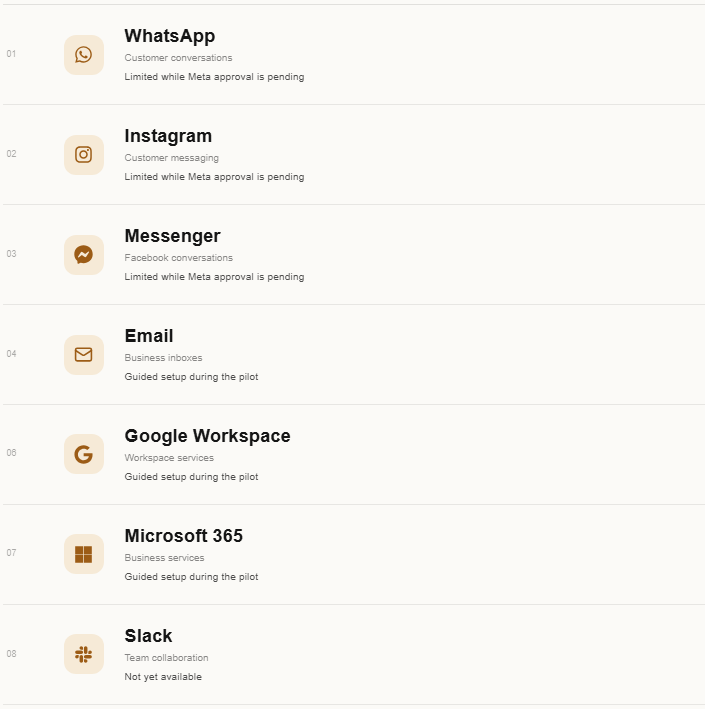
- Email (Gmail or Outlook): set up with the NURA team during the pilot. Google sign-in is still in testing, so the NURA team must add your email address first. For Microsoft, you may see a notice that the publisher is unverified.
- WhatsApp, Instagram and Messenger: limited while Meta's approval is pending. Each one needs your own Meta business account and Meta's approval. Connecting an existing WhatsApp number that already uses the WhatsApp Business app is restricted for now. Never register a staff member's personal number as the business line. Instagram works only for accounts the NURA team has added as testers until Meta approves the app.
- Google Workspace and Microsoft 365 tools: set up with the NURA team during the pilot.
- M-Pesa and other payments: not available yet.
- Slack: not available yet.
Once a channel is connected, its messages appear in the Inbox with the channel shown on each conversation.
---
6. Ask NURA
Everyone can use Ask NURA. Open it from the sidebar, or press Ctrl K.
Ask questions about your own business, for example "Is the ready bouquet in stock?", "What needs attention?" or "Show today's work". NURA answers from the records your role can see. It says where the answer came from, and asking a question never changes anything.
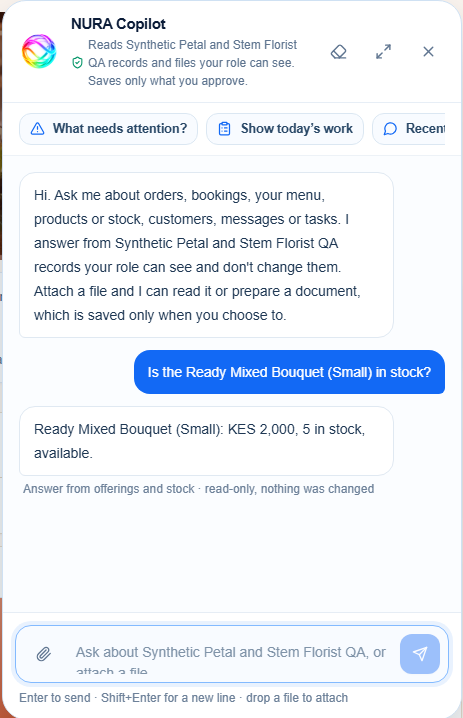
You can also attach a file for NURA to read, such as a price list (see section 3), or ask it to prepare a document. NURA saves something only when you choose to.
Limits today: some common questions, such as delivery fees, "Do we offer payroll?" or questions about extras, can get a "not found" answer even when the information exists. When that happens, check the Products or FAQ page. Ask NURA cannot list orders yet. It points you to the Orders page instead.
---
7. Create with NURA: from a conversation to an order
This is how a customer message becomes a real order or booking. There are four steps: propose, review, approve, accept. Nothing is created until a person confirms it.
Step 1. Propose (any staff member). In the Inbox, open the conversation and choose Create with NURA. Pick what to create, for example Order, Quotation, Lead or Follow-up. The choices depend on your business type. Then choose Prepare from conversation, or Enter details myself.
Step 2. Review. NURA fills in the items, quantities and date from the conversation, prices them from your catalogue and checks stock. It shows what the customer actually said, so you can compare. Check every line, and the "Needed by" date in particular. NURA can get dates wrong, especially when the customer did not give one. If you edit anything, choose Re-check.
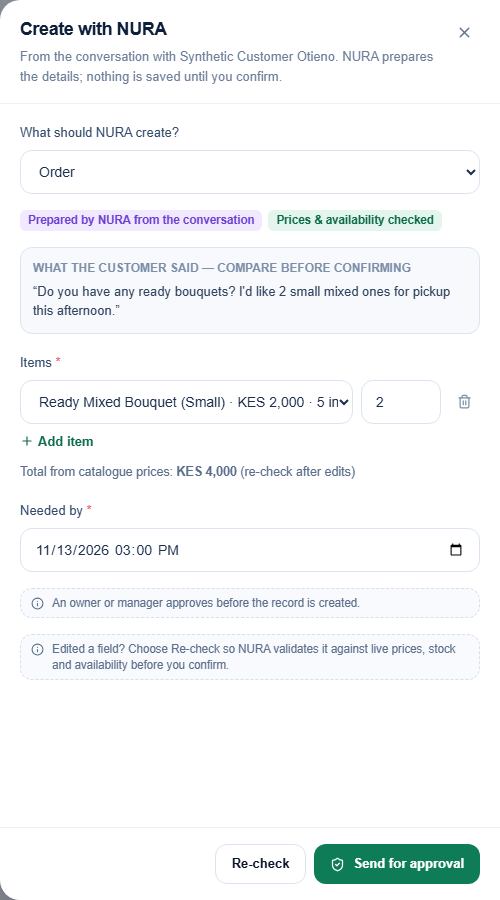
An agent then chooses Send for approval. An owner or manager sees Approve order instead.
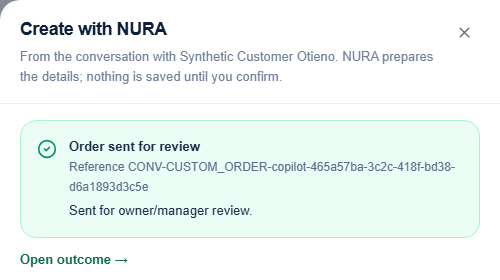
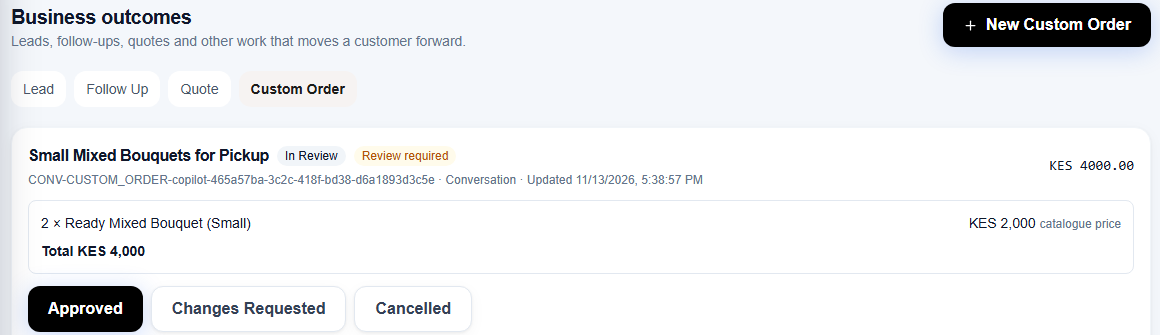
Step 3. Approve (owner or manager). Open Customers, then Leads and Quotes, and choose the tab for the kind of record, for example Custom Order. Check the item in review, then choose Approved. You can also choose Changes Requested or Cancelled.
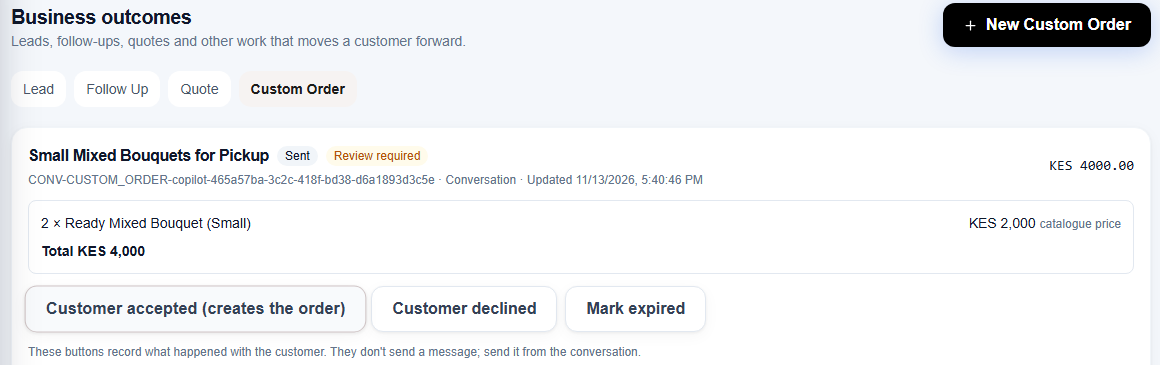
Step 4. Send and accept. Send the offer to the customer from the conversation yourself, then choose Mark as sent. When the customer agrees, choose Customer accepted. This is the step that creates the order. These buttons only record what happened. They never send a message to the customer.
The new order appears in Orders as New, ready to confirm.
---
8. Daily work: inbox, tasks, orders and bookings
Inbox
Open Communications, then Inbox. Conversations from every channel are listed in one place. Use the filters (Attention, Unread, Mine, To reply) to decide what to handle first. The panel on the right shows the customer's details and a summary. It also shows a suggestion when NURA spots something, for example a custom order request.
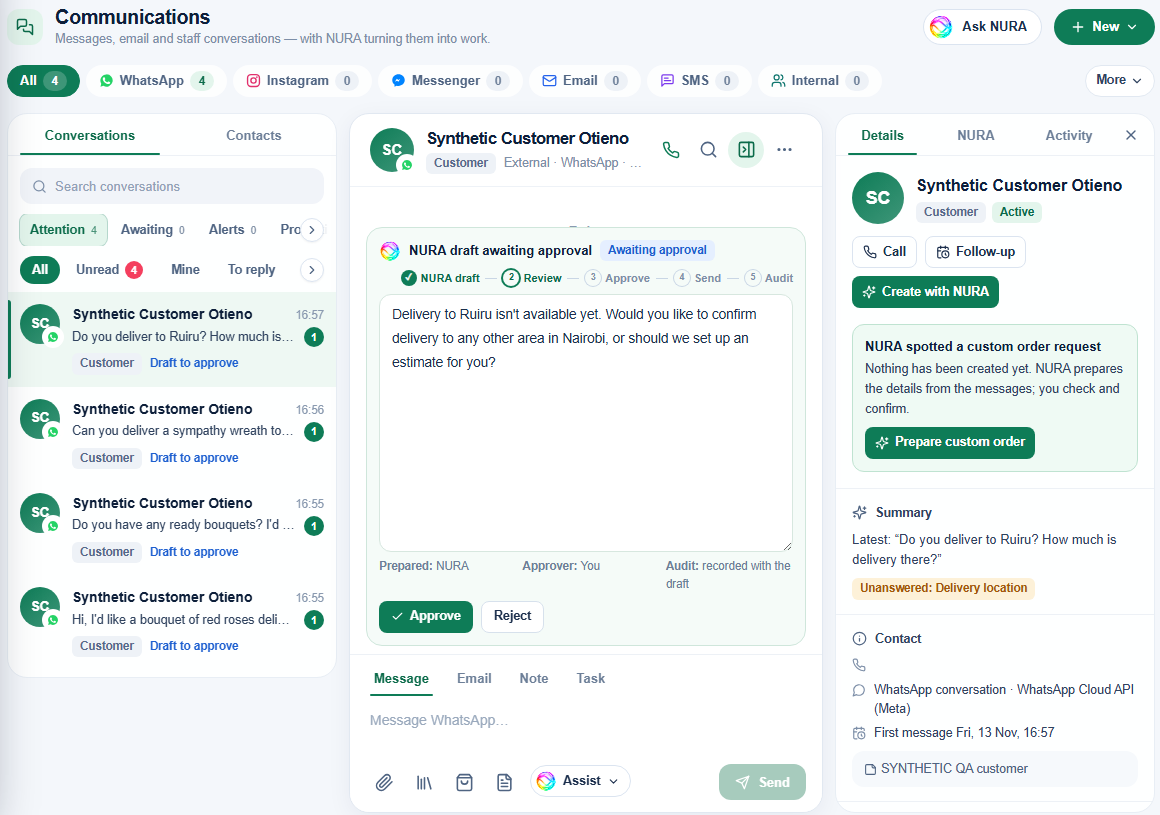
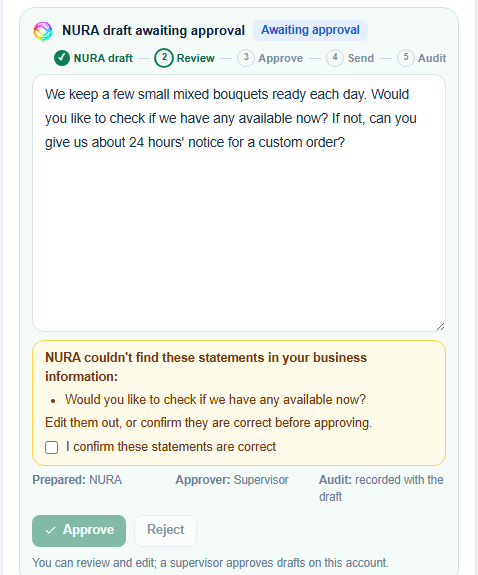
Reply drafts. NURA can draft a reply for each new message. A draft is never sent automatically. Read it, edit it if needed, then approve it. Approving and sending are separate steps: once a draft is approved, you send it from the conversation. Agents can review and edit drafts, but whether they can approve them depends on your draft-approval setting.
If NURA used something it could not find in your records, the draft is flagged and Approve stays locked until you deal with it:
Approvals. Owners and managers can see every reply waiting for approval in one list. Each one links to its conversation.
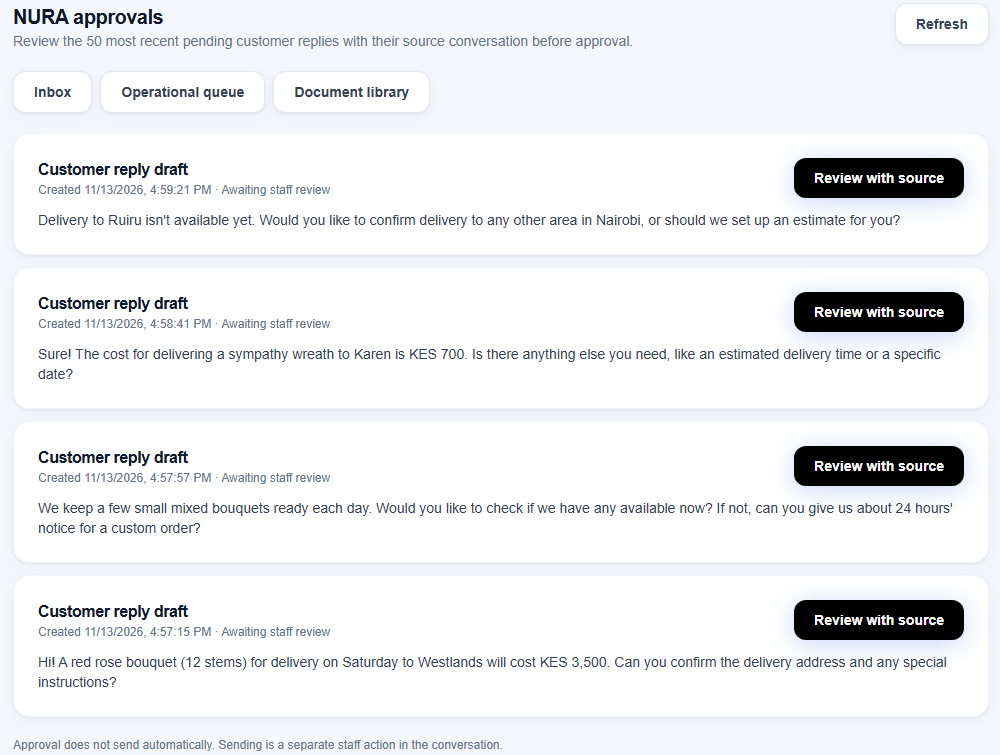
Before approving any draft, check for:
- totals that leave out the delivery fee;
- promised delivery times or quantities you cannot guarantee;
- statements that a payment was received or that an order is "on the way".
NURA does not always flag these yet (see Current limitations).
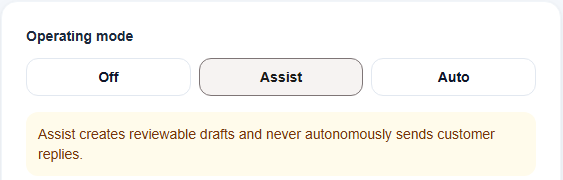
Under Automation and NURA, then AI Settings, keep the operating mode on Assist. In Assist mode, NURA only creates drafts for you to review. Auto lets NURA send some routine WhatsApp replies on its own, so it is not recommended during the pilot.
Tasks
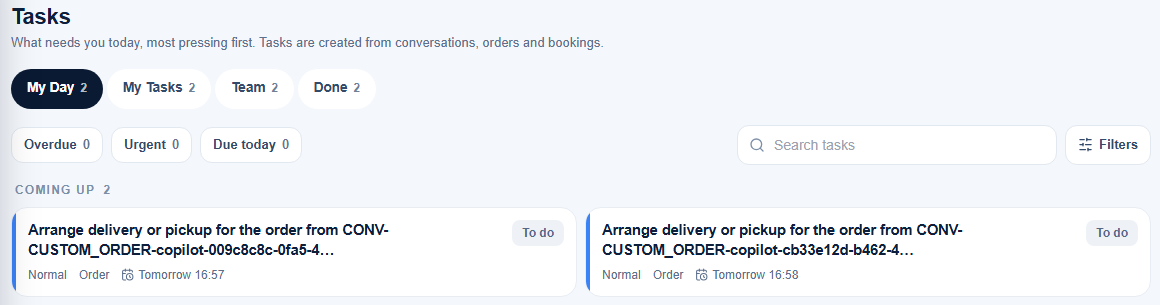
People and Work, then Assigned Work, lists what needs doing, with the most urgent first. Tasks are created from conversations, orders and bookings. For example, accepting an order adds a task to arrange delivery or pickup.
Orders
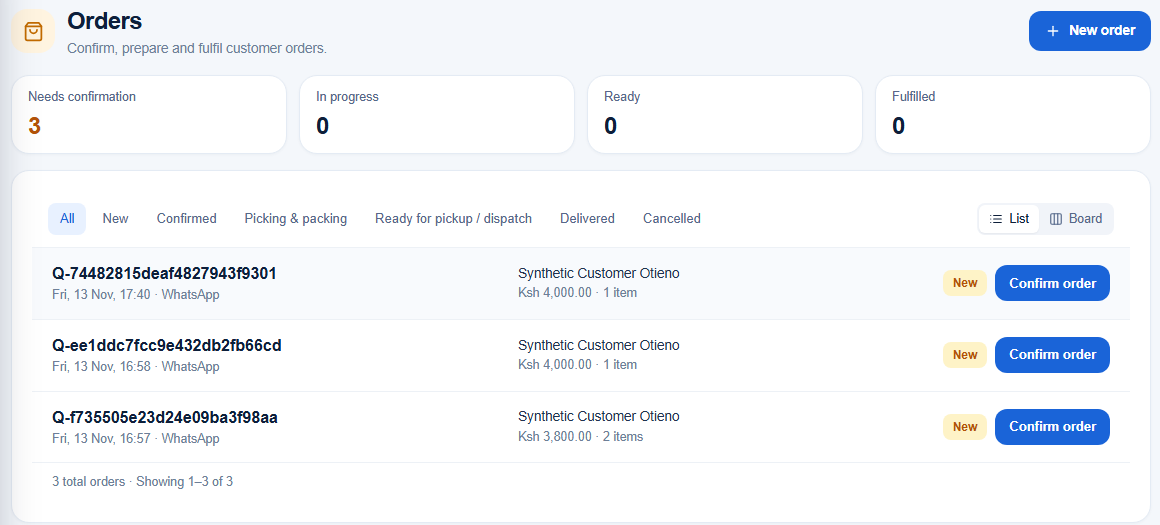
Orders moves through New, Confirmed, Picking and packing, Ready for pickup or dispatch, and Delivered. An owner or manager confirms each new order. You can switch between a List and a Board view.
Bookings and appointments
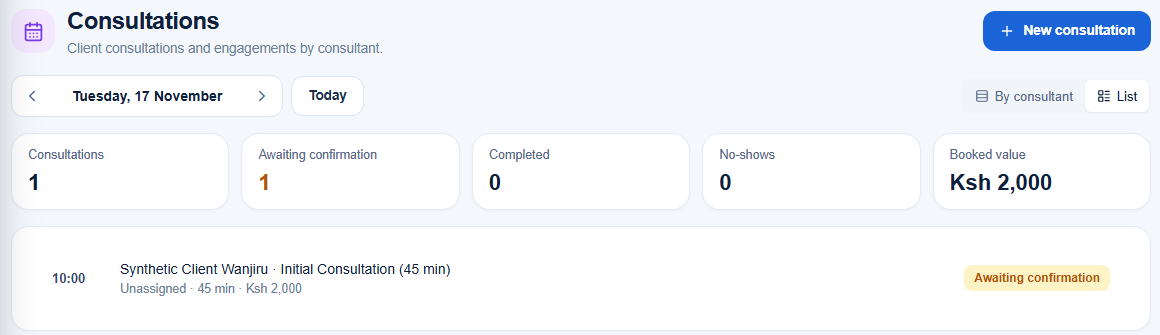
Businesses that take appointments have a Bookings page, shown as Appointments or Consultations depending on the business type. You can view it by staff member or as a list. Some business types, such as professional services, cannot book from a conversation yet. Use New consultation (or New booking) on this page instead. Bookings do not check your opening hours yet, so check the day before you confirm.
---
9. Reports and exports
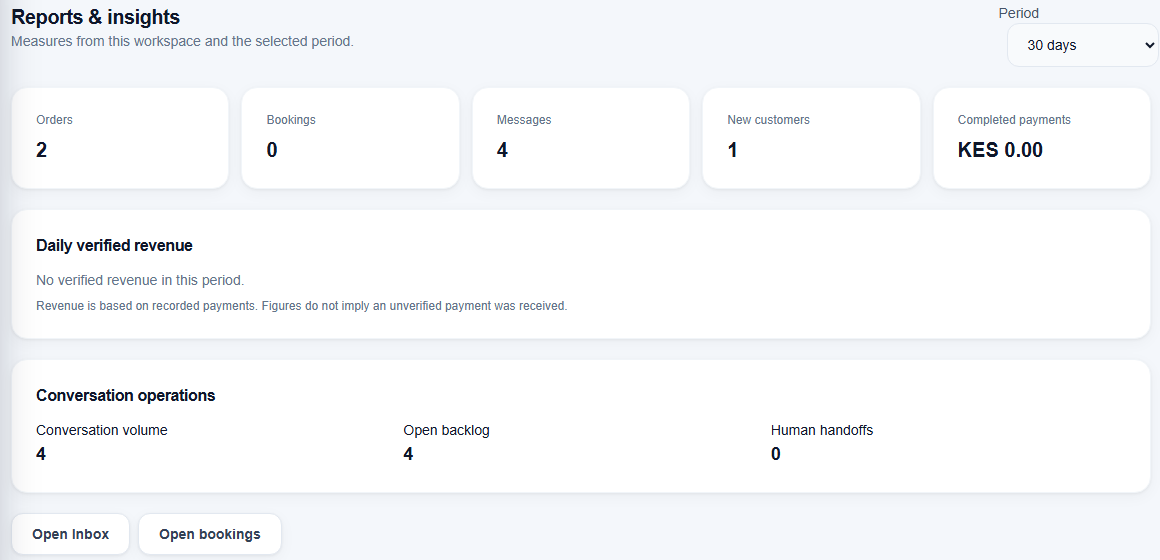
Owners and managers can open Insights, then Reports, to see orders, bookings, messages, new customers and completed payments for a chosen period, plus conversation volume and backlog. Revenue counts only recorded payments. It does not include orders that have not been paid.
Exports: there is no CSV or spreadsheet export for orders, customers or the catalogue yet. Use the Orders, Customers and Reports screens. Education workspaces have their own reports with exports.
---
10. Current limitations
These apply to the version released on 13 November 2026. We will update this list as fixes are released.
Orders and stock
- Made-to-order items cannot be ordered through Create with NURA. Items marked "on request" with a stock of 0, such as bouquets made to order or burgers cooked to order, are blocked as out of stock. A fix is being tested.
- Orders do not reduce or reserve stock. Two orders can together use more than you have, so update stock counts by hand.
- There are no modifiers or removals ("no onions") on orders. Add extras as their own catalogue items, and keep special requests in the conversation.
- There are no delivery zones. Add each delivery area as its own catalogue item with its fee.
- Orders have no delivery address, recipient name, gift message or time slot, and no shipping tracking. Keep these in the conversation.
- Agents can type their own price on a custom line in a manual order, so check manual orders before you confirm them.
Drafts and the assistant
- Every customer reply drafted by NURA needs approval, and sending is a separate step.
- Drafts can still promise things nothing in your records supports, such as a payment received, a delivery time, a quantity you can make, or an order "on the way". These are not always flagged, so read every draft before approving it.
- Some draft totals leave out the delivery fee without being flagged.
- A draft can offer an item whose stock is 0 if the item is still marked available.
- When a customer gives no date, NURA may fill one in, and the date may already have passed. Always check "Needed by".
- Ask NURA gives a "not found" answer to some common questions (delivery fees, some services, extras), and it cannot list orders.
Bookings and settings
- Bookings accept days when you are closed.
- Professional services workspaces cannot book appointments from a conversation. Use the Bookings page.
- A manager can change the currency with no conversion and no record in the activity log.
- Names and job titles entered on an invitation are not carried over to the staff profile.
Channels and data
- WhatsApp, Instagram and Messenger are limited while Meta's approval is pending. Email is the first channel to set up.
- M-Pesa and other payment connections are not available yet.
- There is no CSV or spreadsheet export for most business types.
- Recognising staff on WhatsApp is not released yet.
---
11. Getting help
- Use the chat bubble on the NURA website for quick questions about using NURA.
- Email info@datamonks.io for help with setup, connecting channels, approvals or anything that looks wrong. Tell us your business name and what you were doing. Please don't send passwords, payment details or customer data by email.
- For privacy requests, email privacy@datamonks.io. For security concerns, email security@datamonks.io.
- If something looks wrong in an order, a draft or a total, do not approve it. Leave it waiting and contact us.